
- December 19, 2025
2 months ago
5.3K Comments
How to Setup Facebook Conversion API Full Guide 2026
Why Tracking Is a Problem?
Many website owners run ads and bring visitors to their site.
But later, they notice a problem.
-
Sales numbers do not match
-
Ads show fewer purchases
-
Google Analytics data looks wrong
This usually happens because tracking is broken.
Browsers, iPhones, and ad blockers now block many tracking tools.
This is why Google Tag Manager (GTM) is so important.
In this guide, you will learn:
-
What Google Tag Manager is
-
How GTM works
-
How to set it up
-
What server-side tagging means
-
Why GTM helps your ads and data
What Is Google Tag Manager (GTM)?
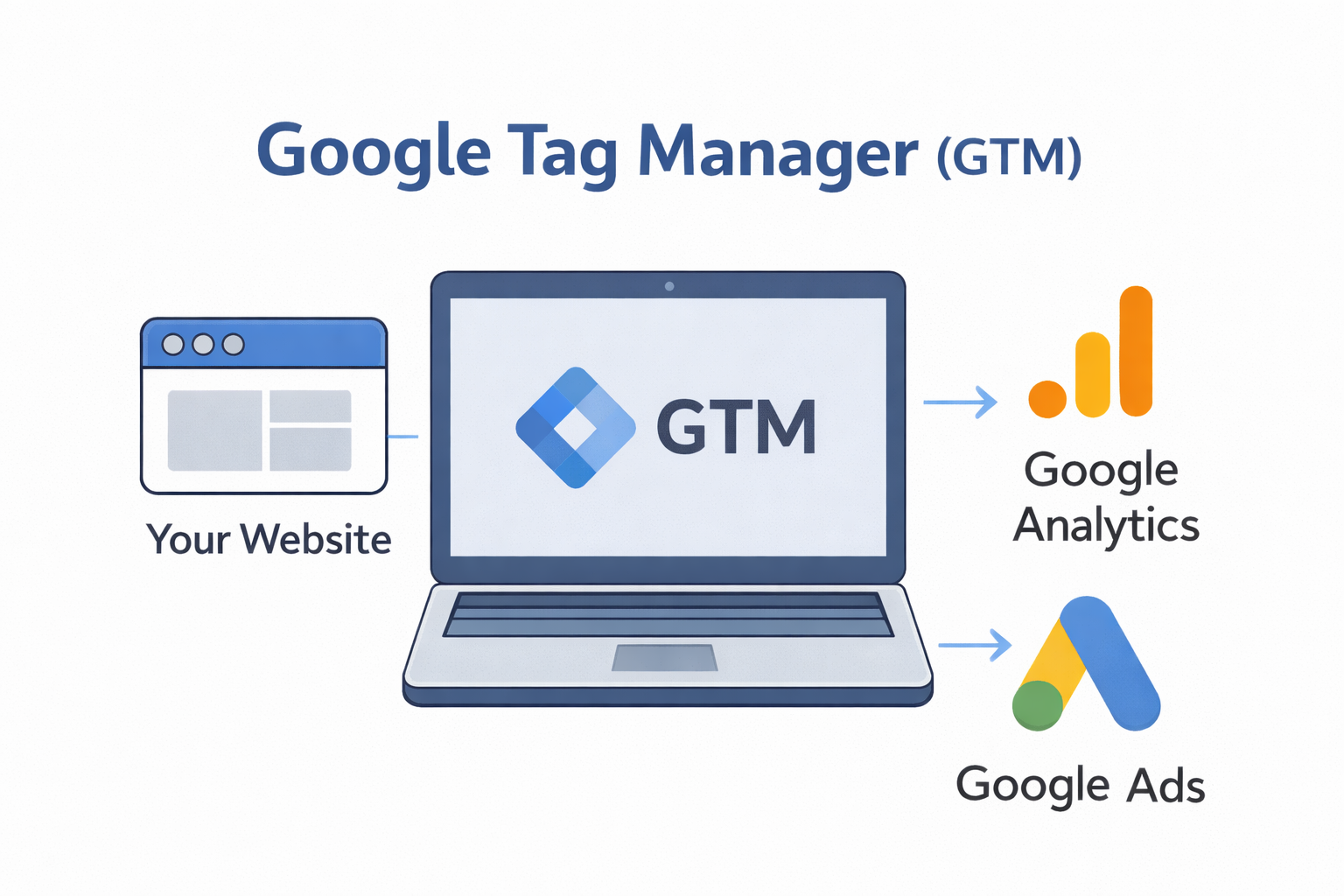
Google Tag Manager is a free tool from Google.
It helps you add and manage tracking codes on your website without touching the website code again and again.
With GTM, you can add:
-
Google Analytics (GA4)
-
Facebook / Meta Pixel
-
Google Ads tracking
-
Other marketing tools
All from one dashboard.
👉 Think of GTM as a remote control for your website tracking.
How Google Tag Manager Works (Easy Version)
Google Tag Manager has three main parts:
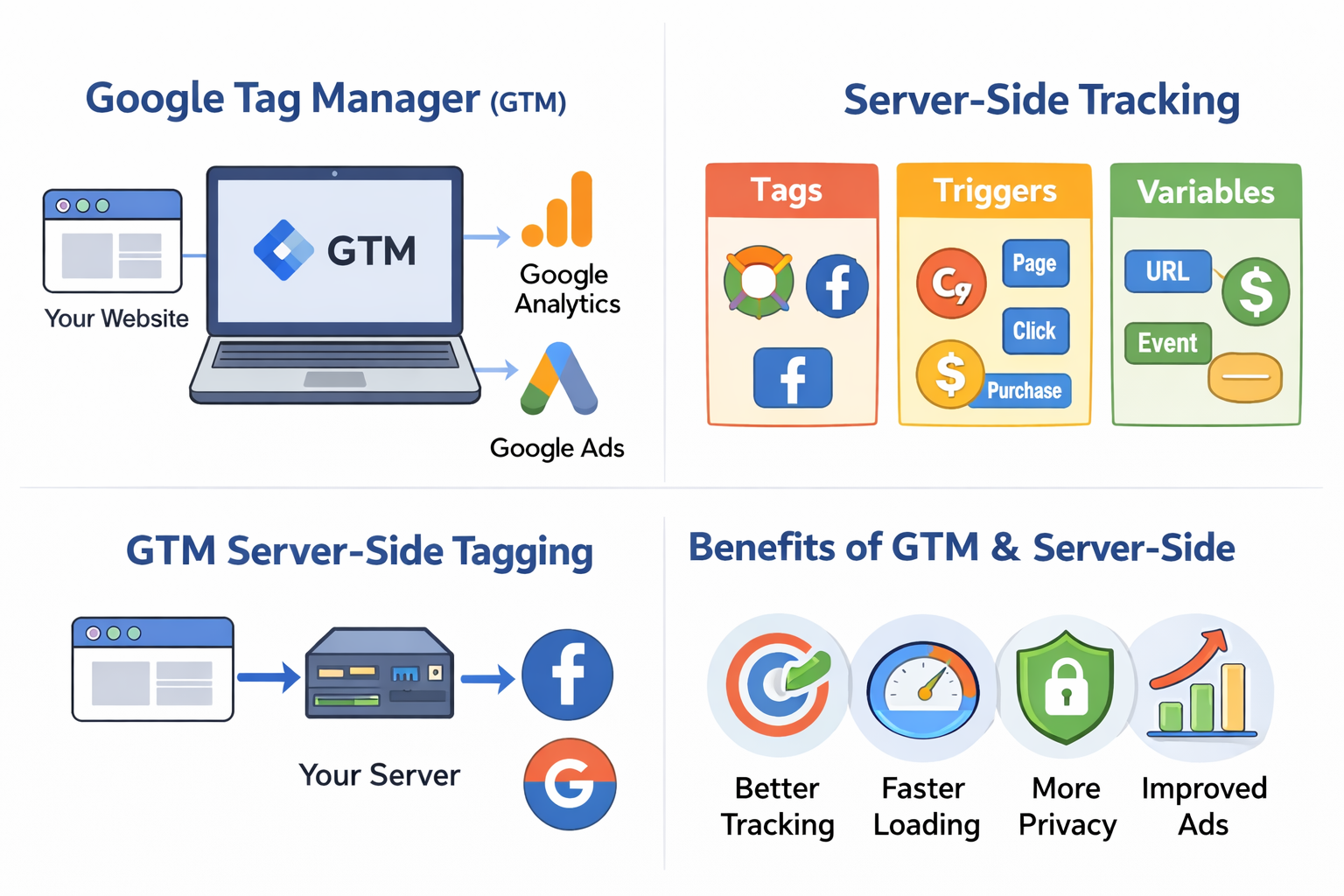
- Tags
Tags are tracking tools.
Example:
- GA4 tag
- Meta Pixel tag
2. Triggers
Triggers decide when a tag works.
For example:
-
When a page loads
-
When someone clicks a button
-
When a purchase is complete
3. Variables
Variables store information like:
-
Page URL
-
Button name
-
Order value
When someone visits your site, GTM checks the rules and sends the right data.
“Using Google Tag Manager with server-side tracking helps you get better data, improve ad performance, and make smarter decisions.”
— Nahid Khan
Why Google Tag Manager Is Important in 2026
Tracking is harder than before.
Problems today:
-
iPhones block tracking
-
Browsers stop cookies
-
Ad blockers block pixels
GTM helps because:
-
It keeps tracking organized
-
It improves website speed
-
It supports server-side tracking
-
It gives better data for ads
Without GTM, your data is not reliable.
How to Set Up Google Tag Manager (Simple Steps)
Step 1: Create a GTM Account
-
Go to Google Tag Manager
-
Create an account
-
Choose Web as platform
Step 2: Add GTM to Your Website
Add the GTM code to:
-
Website header
-
Website body section
Most platforms like WordPress or Shopify make this easy.
Step 3: Connect Google Analytics (GA4)
-
Add a GA4 tag in GTM
-
Track page views
-
Track important actions like:
-
Purchases
-
Form submissions
-
Button clicks
Step 4: Test Everything
-
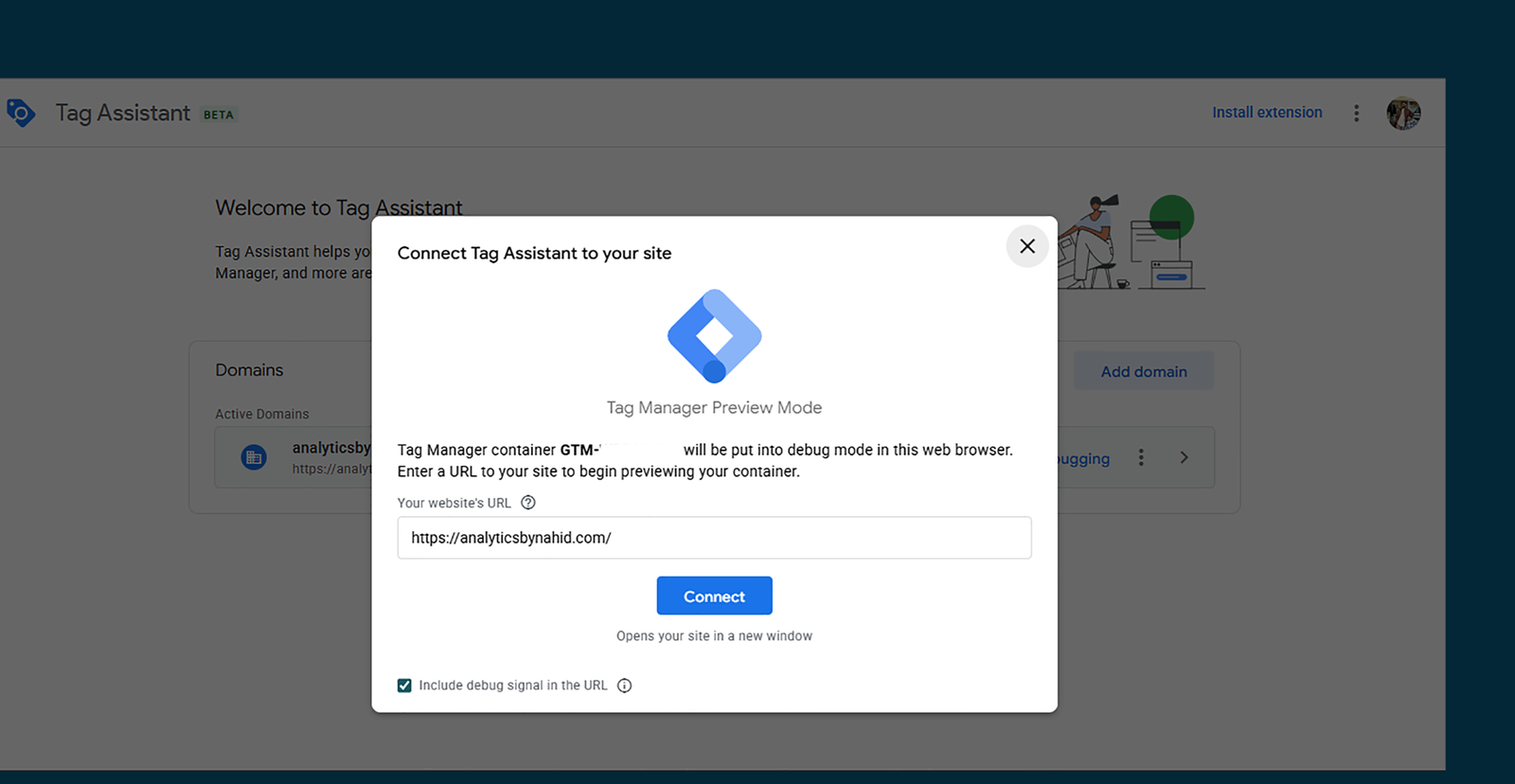
Use GTM Preview mode
-
Check data in GA4 DebugView
Client-Side vs Server-Side Tracking (Easy to Understand)
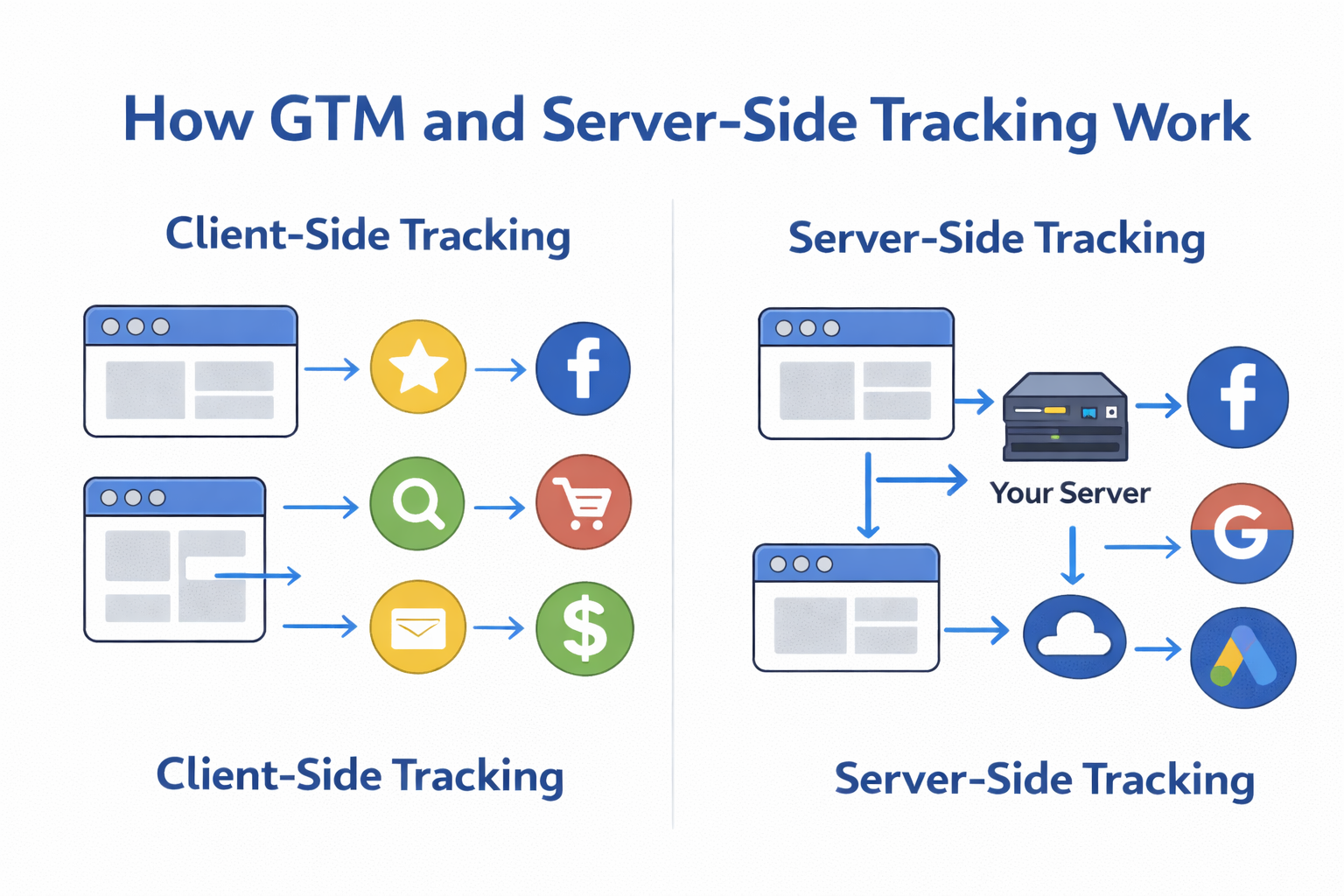
Client-Side Tracking (Old Way)
-
Runs in the visitor’s browser
-
Easy to block
-
Loses data
Server-Side Tracking (New Way)
-
Runs on a server
-
Harder to block
-
Sends cleaner data
-
Faster website
This is why GTM Server-Side is becoming popular.
What Is GTM Server-Side Tracking?
With server-side tagging, data goes like this:
Old way:
Website → Facebook / Google
New way:
Website → Your Server → Facebook / Google
This gives you more control and better tracking.
Popular server tools:
-
Google Cloud
-
Stape
-
Cloudflare
Benefits of GTM Server-Side Tagging
Here’s why server-side tagging is powerful:
-
✅ More accurate tracking
-
✅ Better ad results
-
✅ Faster page loading
-
✅ Less data blocked
-
✅ Better privacy control
If you run ads, this is a big upgrade.
What Happens If You Don’t Use Google Tag Manager?
If you don’t use GTM, you may lose:
-
❌ Correct sales data
-
❌ Ad performance signals
-
❌ Real conversion numbers
-
❌ Clear customer journey
Many businesses waste money on ads because tracking is wrong.
Real Example: Online Store Tracking Fix
An online store had this problem:
-
Shopify showed sales
-
Facebook Ads showed fewer purchases
After using:
-
Google Tag Manager
-
GA4 tracking
-
Meta Pixel
-
Server-side tagging
They saw:
-
More tracked sales
-
Better ad performance
-
Clear reports
This shows how important GTM is.
Common Google Tag Manager Mistakes
Avoid these errors:
-
Adding the same tag twice
-
Not testing before publishing
-
Tracking the same event many times
-
Wrong setup of server-side tags
A clean setup is very important.
When Should You Use GTM Server-Side?
You should use server-side tagging if:
-
You run paid ads
-
You sell products or services
-
You want accurate data
-
You care about long-term growth
For serious businesses, server-side tracking is the future.
Final Thoughts: Start Tracking the Right Way
Google Tag Manager helps you:
-
Control your tracking
-
Fix data problems
-
Improve ad performance
-
Make smarter decisions
If your data is wrong, your decisions will be wrong too.
 click here!
Start using Google Tag Manager properly.
Test your setup.
And use server-side tagging when possible.
If this guide helped you, share it or save it for later.
Good tracking leads to better results.
Categories
Latest Blogs
- All Posts
- Blog
- Facebook Business Manager
- Facebook Conversion API
- Google Analytics 4
- Google Tag Manager
- Meta PIxel
 December 18, 2025
Meta Pixel and Facebook CAPI: 5 Essential Reasons for 2026
 December 18, 2025
Business Account Restricted: How to Recover Meta Pixel 2026
December 12, 2025